
POS systems/Clover
Clover POS
The official Clover lineup, ready for your counter
LatPayOne can set you up on Clover and stage the official devices Clover sells. Browse the hardware below, then search short how-tos written in our own words from Clover's Help Center. If you already run Clover, you can keep it. We handle the processing underneath.
What you get
Official hardware, staged and drop-shipped
These are official Clover devices, shown with product photos from Clover's own site. We can sell the full official lineup. Features can vary by device, app, and account. Open the official product page for the full description.
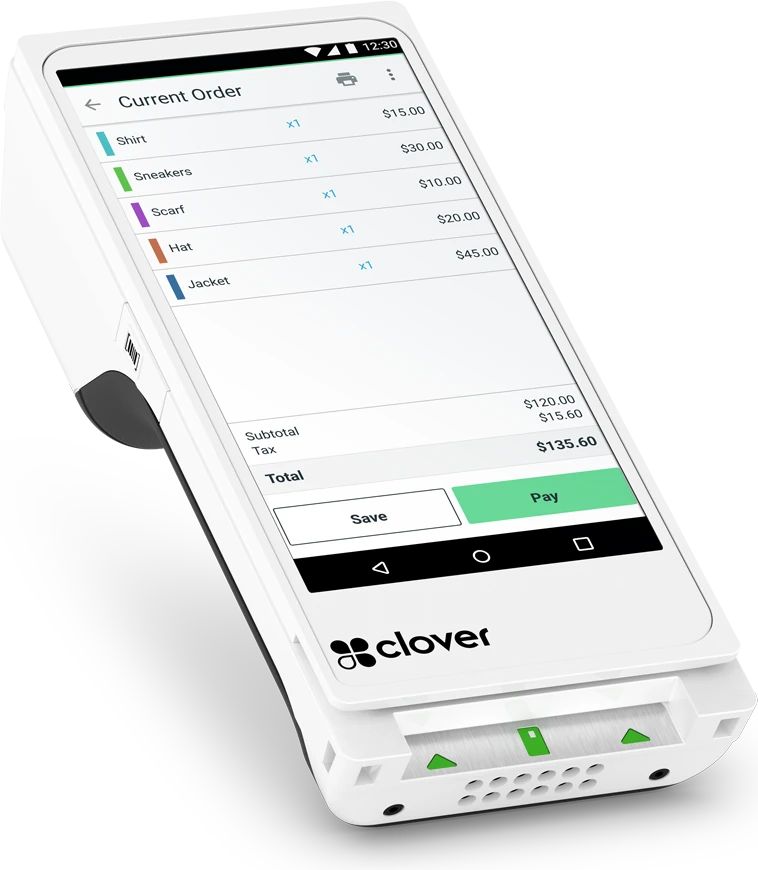
Clover Flex
A handheld Clover POS with a built-in receipt printer, shown on Clover's Flex page.
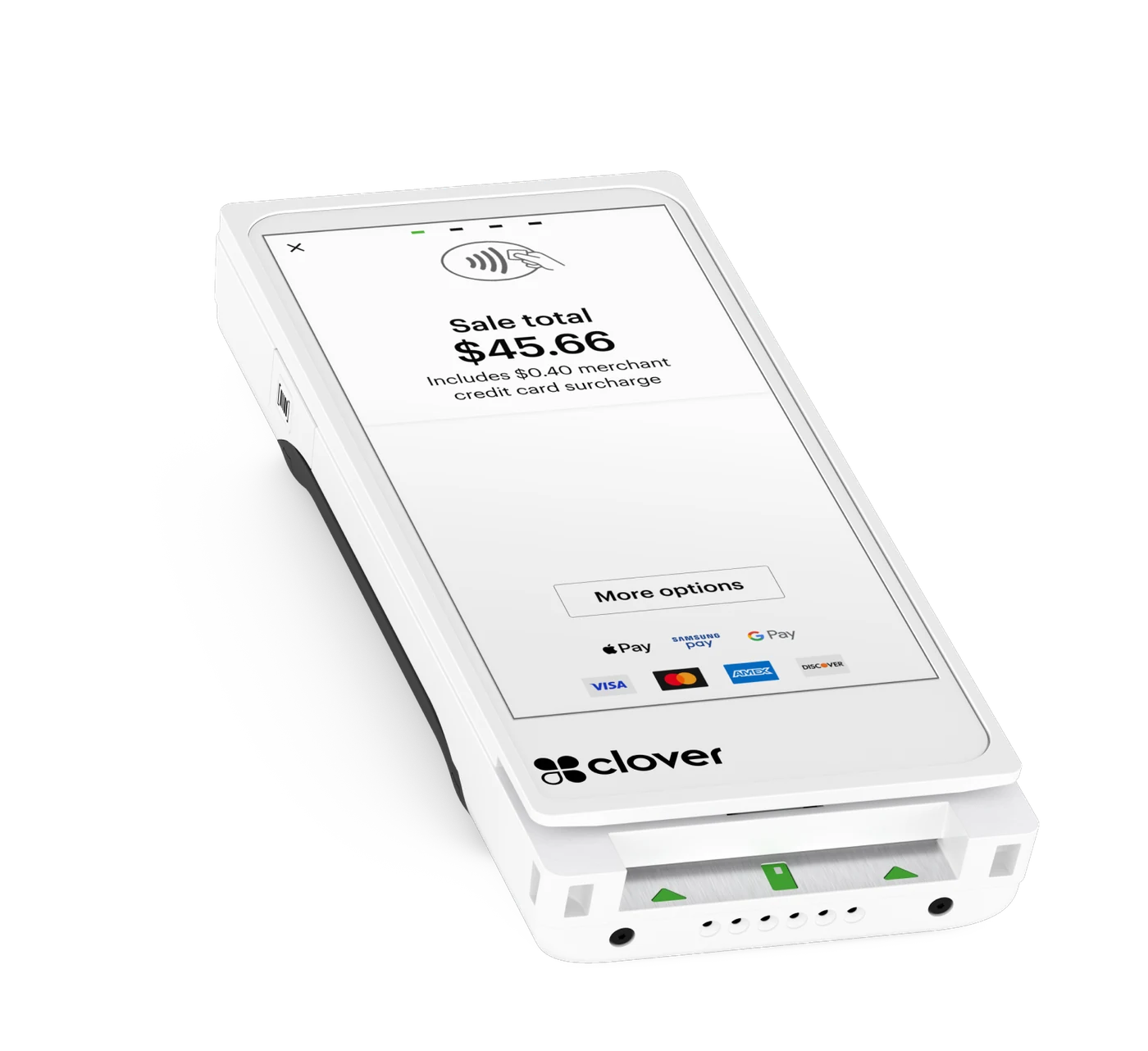
Official product pageClover Flex Pocket
A printerless Flex option made for digital receipts, as described on Clover's Flex Pocket page.
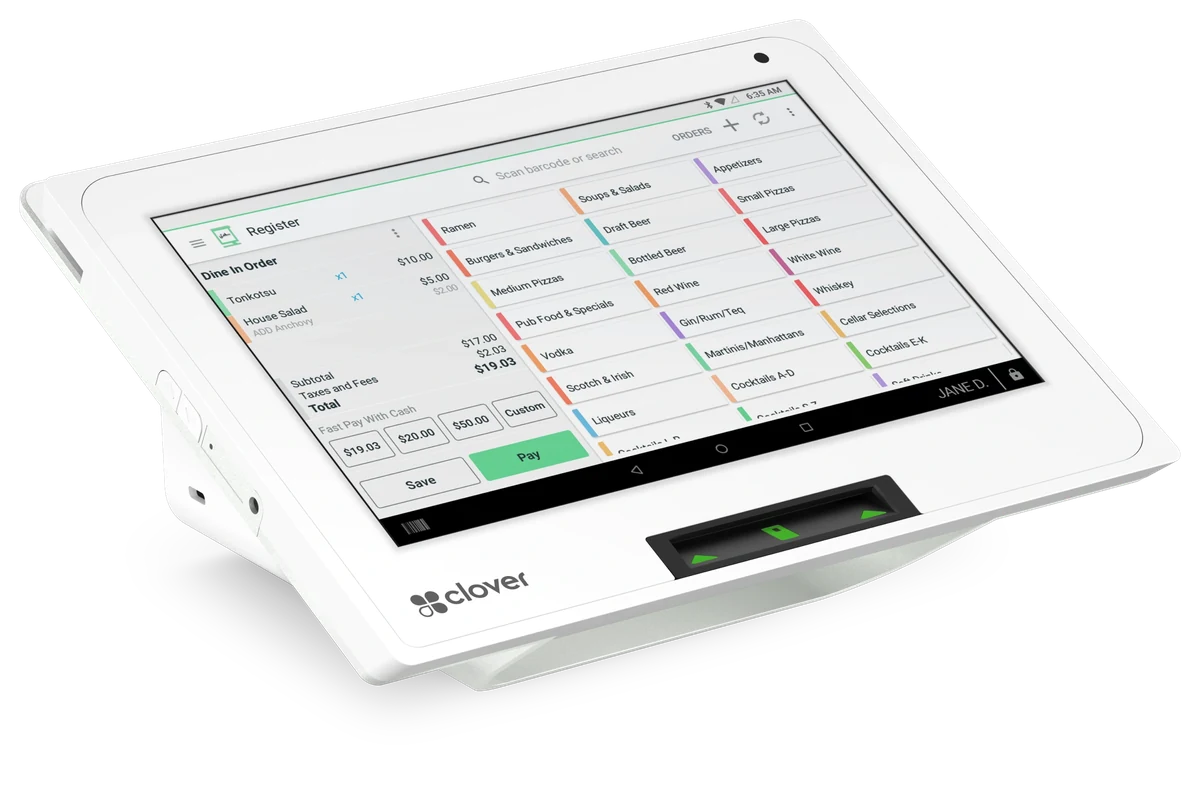
Official product pageClover Mini
A compact countertop Clover device, shown on Clover's Mini page.
Official product page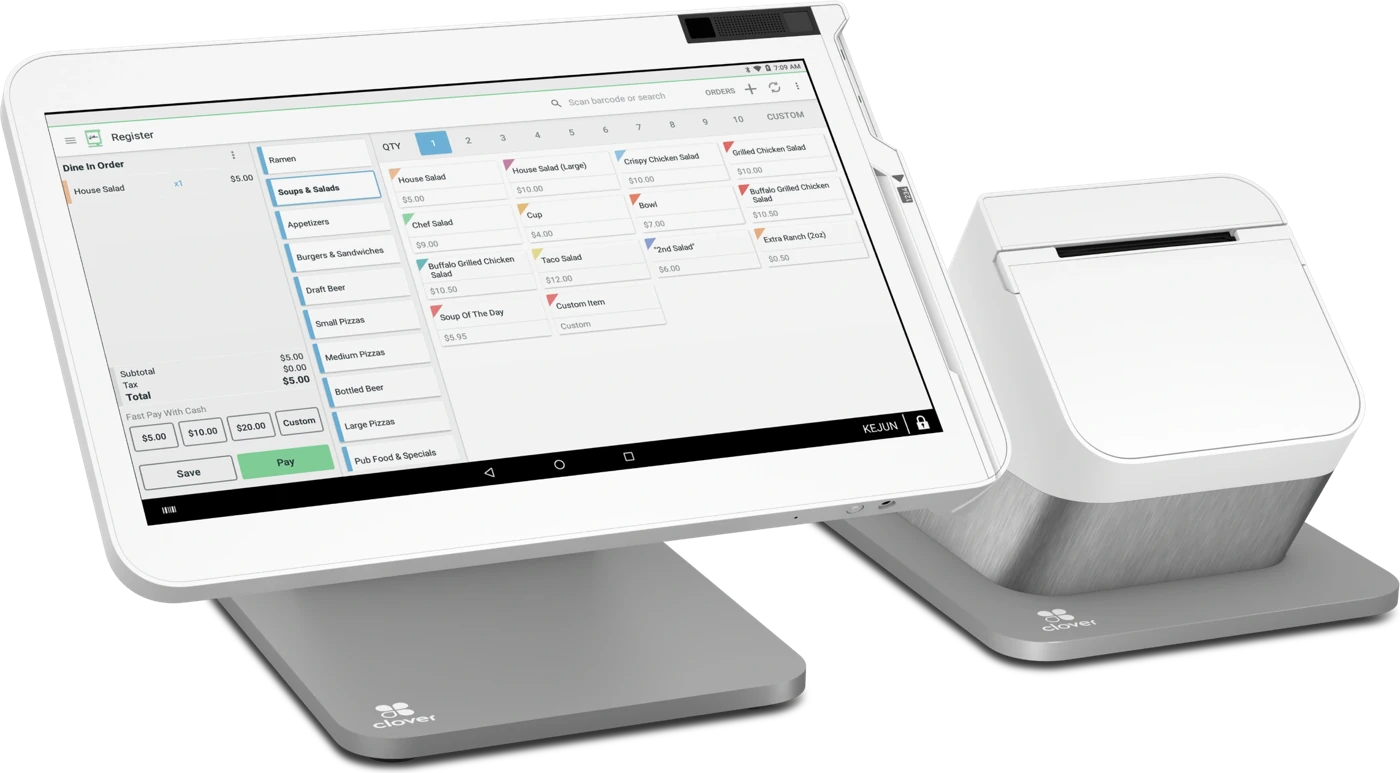
Clover Station Solo
A larger merchant-facing station. Clover describes a 14-inch merchant-facing display on the official Station Solo page.
Official product page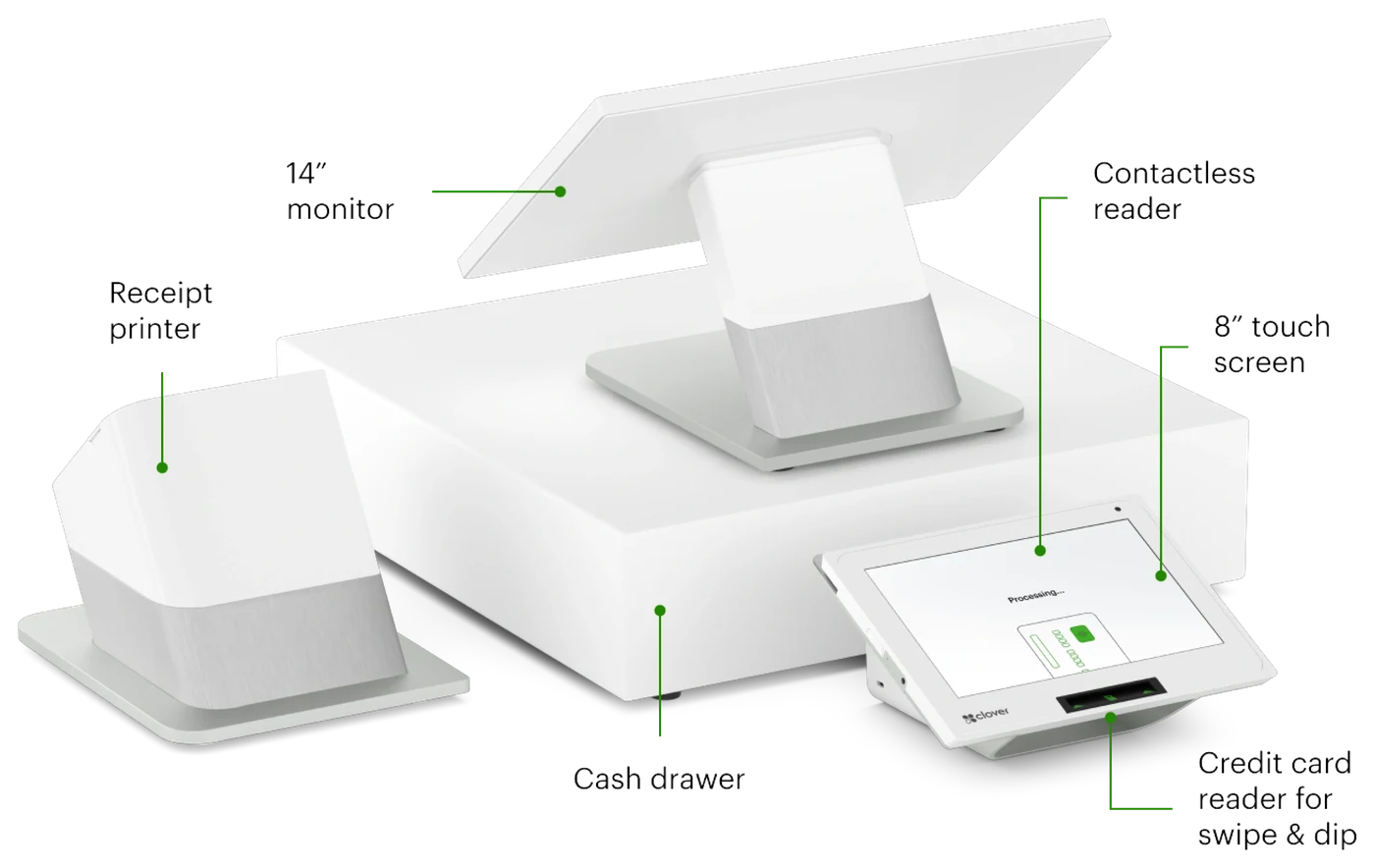
Clover Station Duo
A two-sided counter station, with screens for the merchant and the customer, as shown on Clover's Station Duo page.
Official product page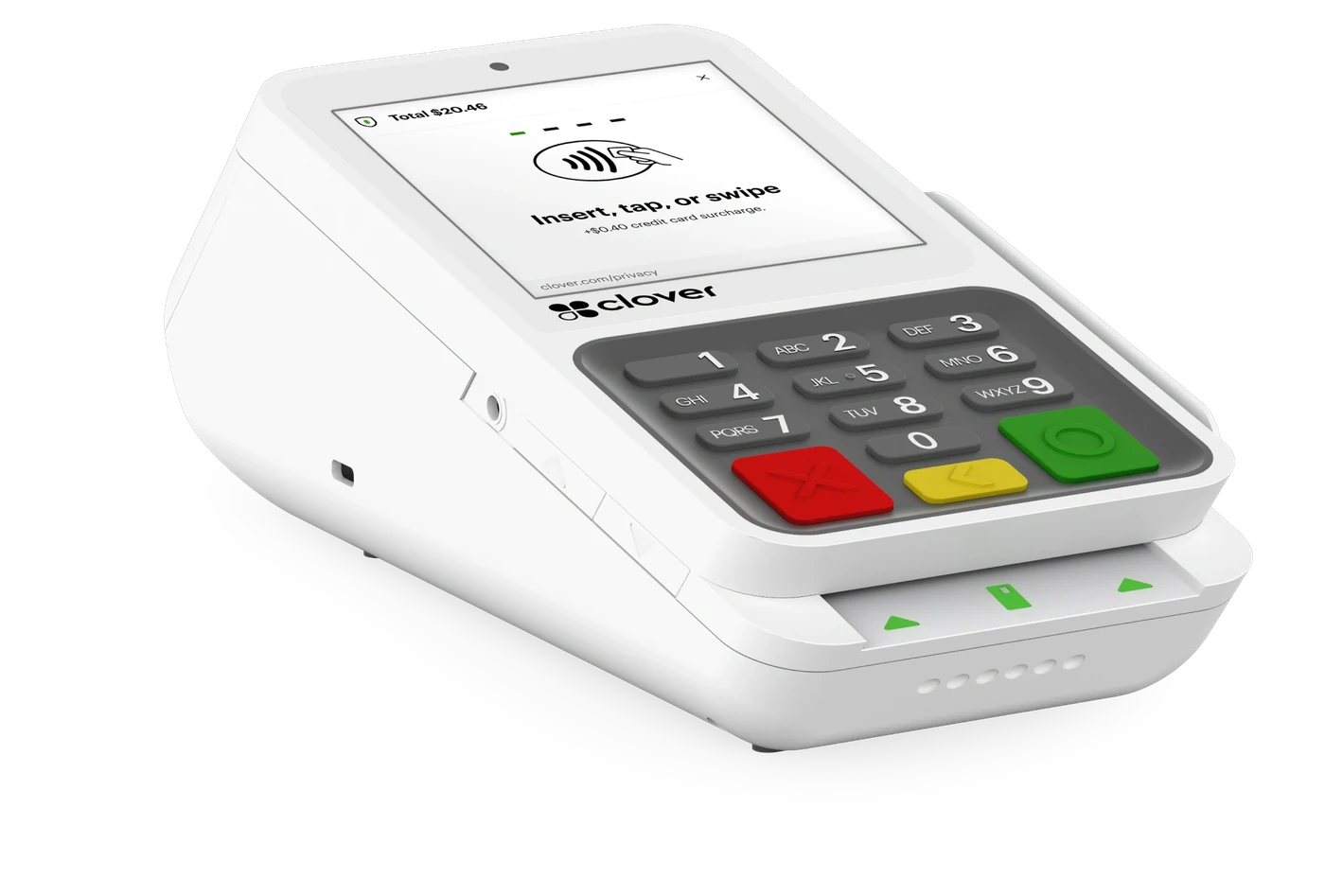
Clover Compact
A countertop payment terminal in Clover's official lineup, shown on the Compact product page.
Official product page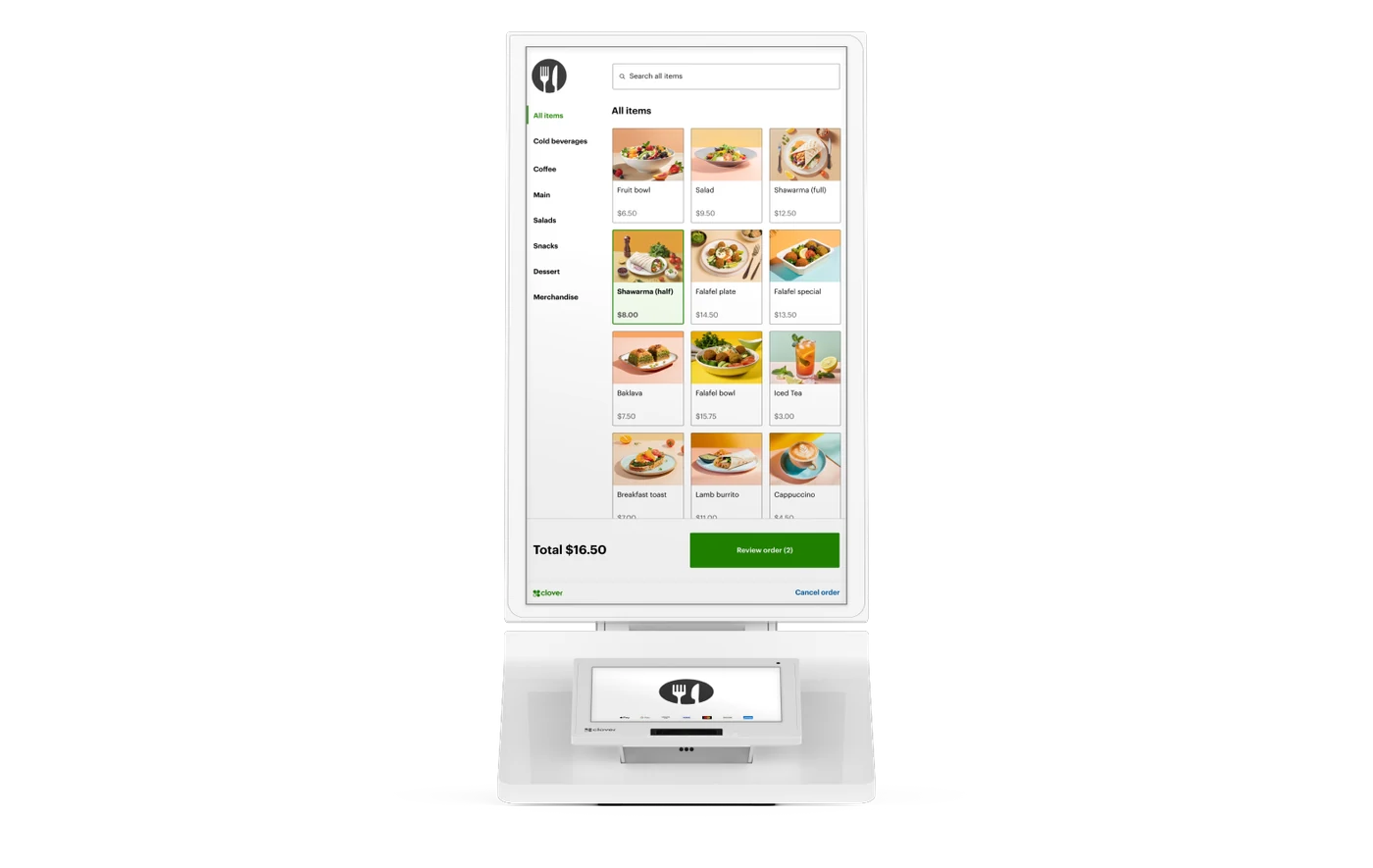
Clover Kiosk
Clover's self-service kiosk. Official pages describe a large display paired with a payment terminal and printer.
Official product page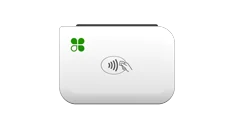
Clover Go
A mobile card reader that works with the Clover Go app on a phone or tablet, as shown on Clover's Go page. The official cutout on this page is Clover's own hardware menu asset, which is small, so we show it in the grid rather than in the hero stage.
Official product page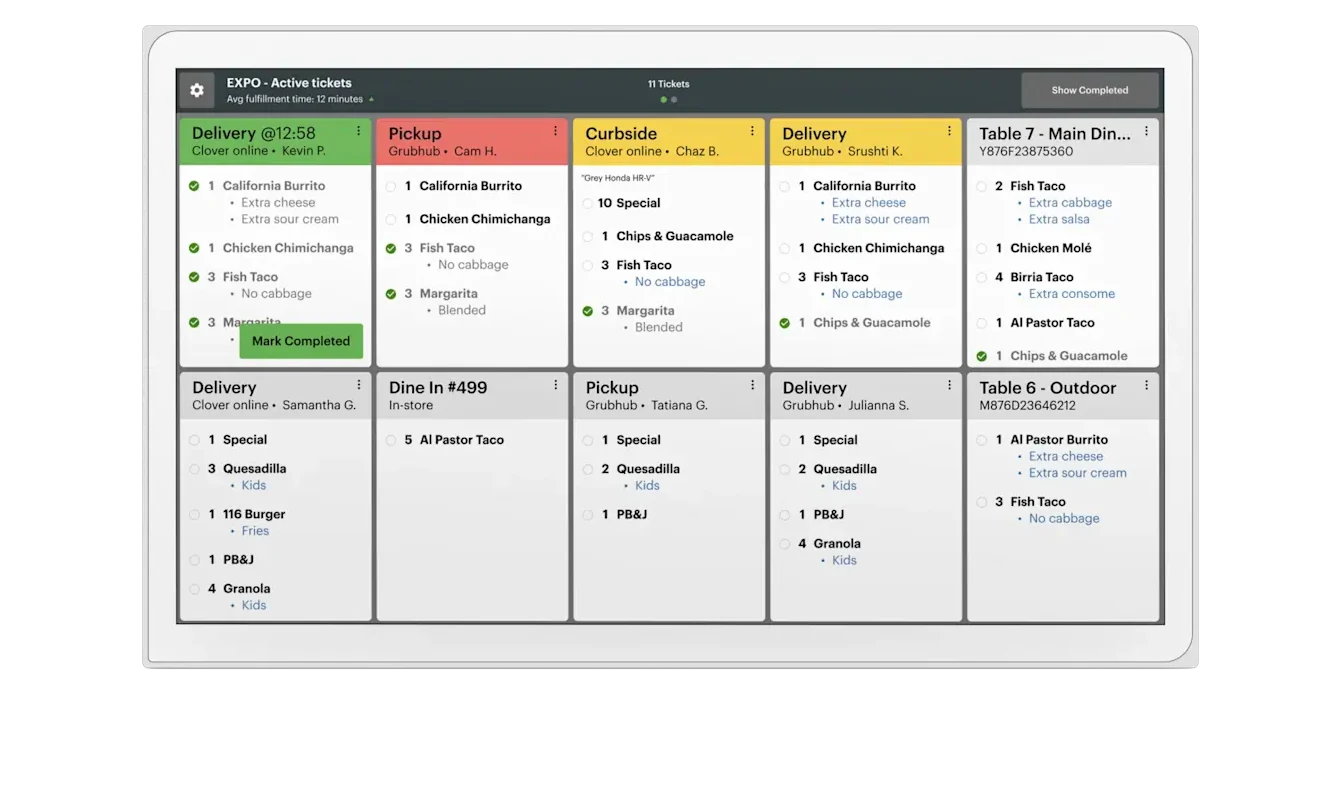
Clover Kitchen Display System
Clover's kitchen display. Official pages show 14-inch and 24-inch sizes. The photo here is Clover's official 24-inch product graphic.
Official product page
What it offers
What Clover offers, and what you get with LatPayOne
Payments on the device or on the go
Clover devices can take in-person card payments. Clover also documents a mobile Clover Go reader, Tap to Pay on iPhone, a Virtual Terminal, and online checkout options in its Help Center.
Items, taxes, staff, and tips
Official Clover guides cover building your item list, setting taxes and fees, giving employees device access, and choosing where customers enter a tip.
Hardware staged for you
We can stage official Clover hardware and drop-ship it. The photos on this page come from Clover's product pages, not from a stock library.
How do I...
Search the how-tos
20 how-tos
Clover Help walks new merchants through three steps. First, log in at Clover.com, confirm the account is active, and finish setup tasks such as confirming business information and adding the items or services you sell. Second, set up a stable internet connection that meets Clover's security requirements. Clover recommends Ethernet for countertop devices, and asks you to leave counter space for a Mini, Station Solo, or Station Duo, plus accessories such as a printer, scale, or cash drawer. Third, power on each device with the included Quick Start Guide, choose a language, check the network status, and enter the activation code when the screen asks for it. Clover then installs the latest apps for that device. If you do not have a Clover device yet, Clover Help says you can still take payments with the Clover Go app or Virtual Terminal once the account is active.
Source: Get ready to use Clover in three steps
Need a different task? The official help center is larger than this page. Open official help
These short answers are written by LatPayOne in our own words from Clover's official Help Center. They are not a substitute for Clover's documentation. Features can vary by device, app, and account. Follow the source article, and log in to Clover Help for guides that match your system.
Want this POS with LatPayOne processing?
Send a recent processing statement for a free fee review, or call and tell us what you already run. If you already use this system, you can keep it. We handle the processing underneath.